Category Archives: Tips

How to avoid gamma shift when posting to Vimeo from FCPX

I had to deliver a revised video to a client this morning, which I thought was going to be as simple as navigating to the Replace Video File tab on Vimeo. A half-dozen upload attempts and 3.5 hours later, my 79meg video file finally finished uploading. Is it just me, or is Vimeo running painfully slow lately? But there was an upside to this delay: it forced me to take a close look at how I’m compressing footage for Vimeo. And I learned a few things about prepping files for Vimeo that are worth sharing.

Final Cut Pro X provides a super simple way to export to Vimeo – just hit Share > Vimeo. This works great if you just want to share a file once. But unfortunately, this doesn’t work for me at all, because I have to upload multiple revisions, and FCPX doesn’t support file replacement from within the app. Final Cut Pro X doesn’t have a way of exporting 1080 to 720 from the Share menu’s Export Movie dialog, so in the past I’ve always just exported 1080p and uploaded that to Vimeo, where it’s converted to 720 on their end.

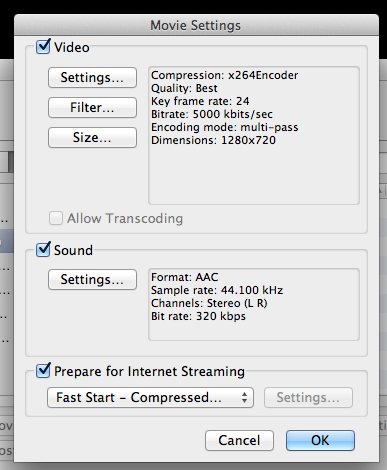
But the slowdown forced me to create 720p files on my end before uploading, and I noticed that converting them using Quicktime 7 to 720p. left the files looking a little washed out and desaturated. I did some digging, and it turns out quite a few others have noticed this gamma shift as well. The good news is it’s fixable, but it requires some work.

The best tutorial on how to fix this is from Transposition Films blog post Best Compressor Settings for Vimeo V2. You don’t actually need Compressor to do this, however, just Quicktime 7. Here’s a simplified, non-Compressor based workflow that gets the job done.

1. Download x264Encoder, a free alternative encoder for use within Quicktime.

2. Open the download and grab just this one file: x264Encoder.component. Copy it to your Macintosh HD/Library/Quicktime/ folder. Make sure it’s the top-level Library, not your User library.

3. Start (or restart if it was already running) Quicktime 7.

4. Select File > Export.

5. Name your file and at the bottom under Export choose “Movie to Quicktime Movie” and click “Options.”

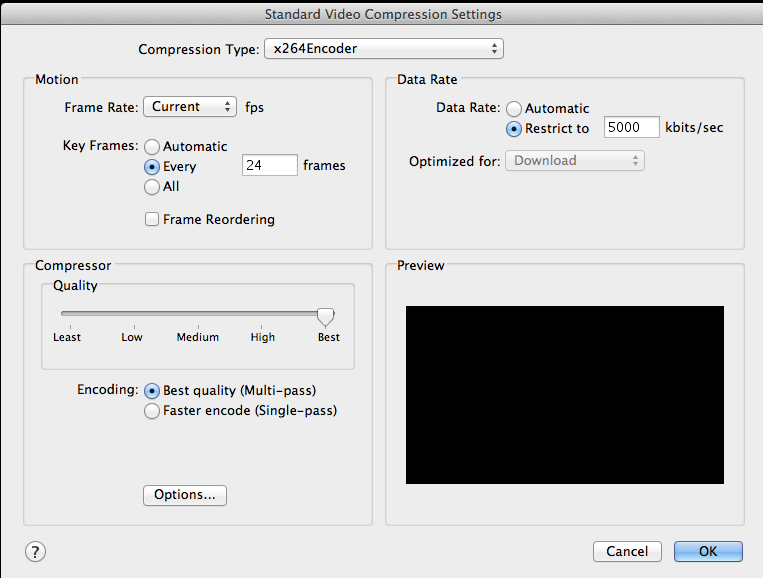
6. Under Video, click “Settings.”

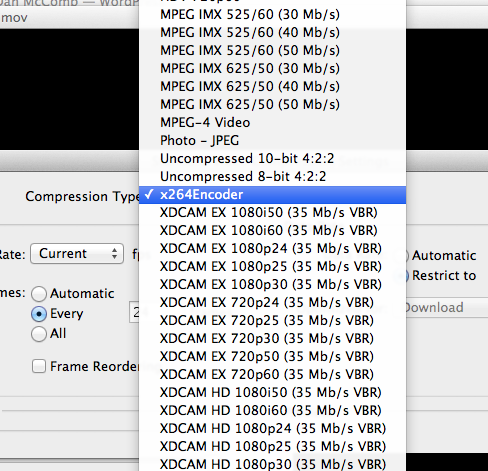
7. Under Encoder, choose X264.

8. Here’s how I set the rest (my clip was 23.987 footage – if you are using a different frame rate, set accordingly, but don’t set higher than 30 frames per second when encoding for Vimeo, even if shot at 60p). Note that I’ve set Restrict to 5,000K per Vimeo’s requested settings. I don’t think there’s any benefit to setting this higher, because Vimeo will recompress it on their end anyway.

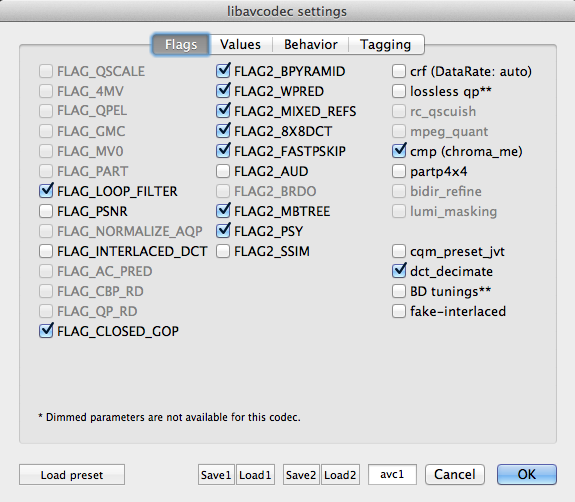
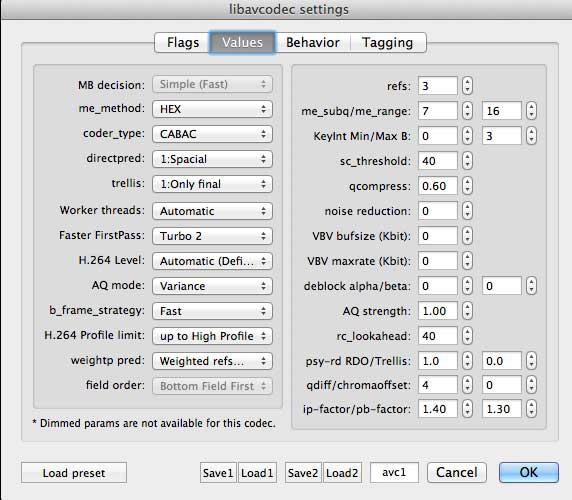
9. Press “Options.” You’ll get a bewildering array of options, but don’t worry – you can accept the defaults on the first tab:

10. Accept defaults on second tab too:

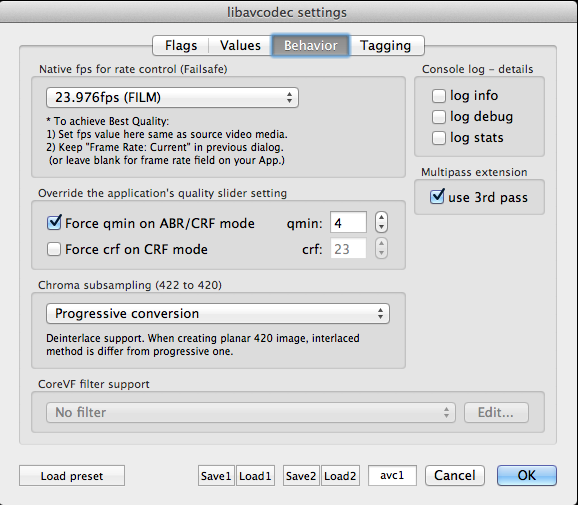
11. On the Behaviors tab, set your native fps according to your footage frame rate. Be sure to check “use 3rd pass.”

12. Under the Tagging tab, select HD 1-1-1 and check Add gamma 2.2.

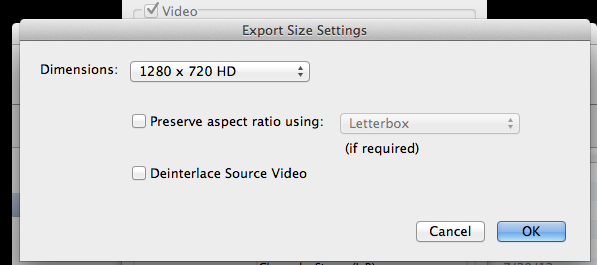
13. Select 1280×720 as size.

14. Here’s your best sound settings:

Export it!

6-step workflow for pristine interview audio synchronization in Final Cut Pro X

I’ve been cutting on Final Cut Pro X for more than a year now. And during that time, I’ve learned to hate working on rough cuts where the audio levels are too low, clipped, or noisy. It’s too tempting to yank on the volume levels of individual clips and introduce problems that will bite you down the line. So over the past year, I’ve evolved a workflow for prepping interview clips that is pretty close to perfect for us at Visual Contact. In our approach, we make the clips sound good as part of the import process, BEFORE we start cutting. It’s made our work a lot smoother, and ultimately it saves us time (and money). Here’s how we do it.

But first, some background on our production technique. When we shoot an interview, we record dual-system sound (reference audio on the camera, and two mics on the subject: a lav and a shotgun mic, recorded to left and right channels respectively, via a MixPre to Zoom H4N. All things being equal, we usually don’t end up using the lavalier audio, preferring the superior sound of a shotgun mic. But experience has made us believers in redundancy.

After a shoot, I import all of the files (audio and video) into Final Cut Pro X, which places all files into the Original Media folder of the Event. From there, my workflow involves the following steps, each of which I’ll explain below:

  1. Batch-sync audio with DualEyes.
  2. Organize files into Smart Collections.
  3. Change sync audio files to Dual Mono.
  4. Create synchronized clips.
  5. Assign keywords to synchronized clips.
  6. Fix glaring audio problems.

Step 1: Batch-Sync Audio.

While it’s possible to individually sync audio within Final Cut Pro X by selecting individual files and creating a sychronized clip, this only works when you know which audio file belongs with which video file. If you have a lot of both, you’re screwed. Unless you were slating everything, which we documentarians almost never do (in part because what I’m about to share with you is much faster).

Batch-syncing in our workflow is made possible with DualEyes. It creates audio files that are clearly labeled with both the video clip from which they are derived, AND the audio clip. This makes syncing them in Step 2 a snap. Note, the latest version of PluralEyes can also accomplish this – but the syncing process involves placing files into a timeline, exporting them out via xml, running PluralEyes, and then bringing them back into FCPX. If you use this method, be very sure to delete the project files that PluralEyes creates after the sync, so you don’t get confused about where your files are – they should only ever be in the Event Library.

So let’s get started. First, quit FCPX (so it doesn’t try read in the temp files that DualEyes is about to create). Open DualEyes, and create a new project. I save it to my Desktop, where I can remember to delete the temp files it creates after the sync. Now drag all your interview audio files and video files into the project.

If your shoot included clips unrelated to the interview such as b-roll, you CAN just drag everything in. It won’t hurt anything (unless you have a ton of clips). But it will take longer for DualEyes to run.

Before you click the scissors icon to begin the sync, check the options. Here’s my settings:
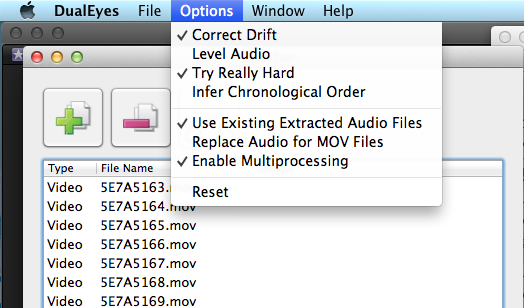
  • Correct Drift: This will create a new audio file that is timed to precisely match the reference audio. Check it.
  • Level Audio: This performs an adjustment to the audio levels, which is probably fine for quick and dirty projects, but if you want to have full control over how your dialog sounds, definitely leave this unchecked.
  • Try Really Hard: Of course you want your software to work hard for you, right? It takes longer, but it does a better job. Check it.
  • Infer Chronological Order: generally your files will be numbered sequentially, but if you are using multiple cameras or different audio recorders, leave this off.
  • Use Existing Extracted Audio Files: This saves time if you are doing a second pass on the files (for example, if it missed some files on first pass, and you’re trying again, it will use the same temp files without having to recreate them, saving time). Check it.
  • Replace Audio for MOV Files: Checking this box will strip out the reference audio from the MOV file and replace it with the good audio. I like to keep my options open, in case I want to use the reference, so I never check this.
  • Enable Multiprocessing: Check it.

Click the scissors to run the sync. Your machine will churn for awhile. When it’s done, take a look at the new files created in your Original Media folder:
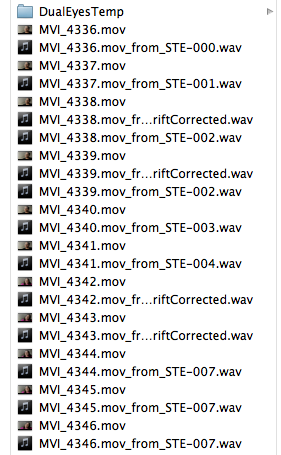
Note that DualEyes has created audio files for you, which are perfectly timed to match the length of the MOV file. And, it titles each file with the name of the mov file AND name of the audio file, important for the next step. You’ll also see that a folder called DualEyes has been created. Delete it, after checking to ensure that a new audio file appears below each video file that you expected to synchronize. If any is missing, run the sync again.

Step 2: Organize Files into Smart Collections.

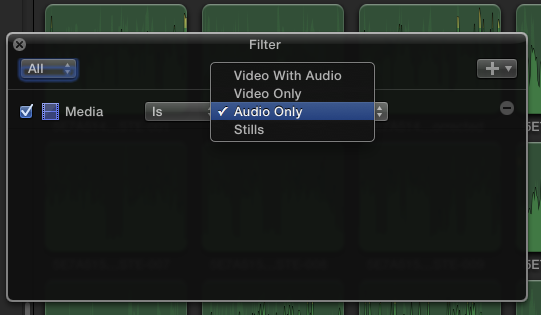
It’s time to start getting organized. Start FCPX, and open the event. I start by creating a Smart Collection for each of the media types in my project (for example, one called Stills for all the still photos, and one called Audio Only for the audio files.
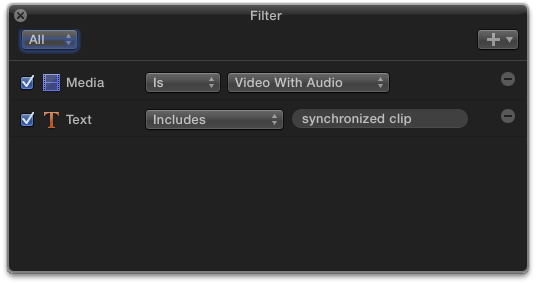
I also create a temporary Smart Collection called Sync Audio to make the next step faster:
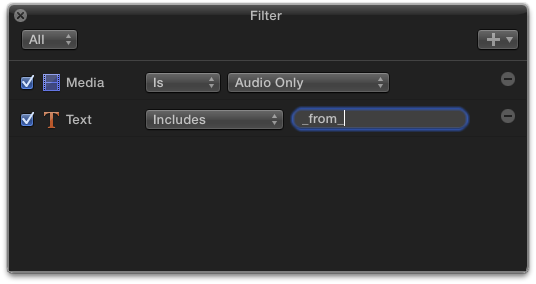
In this collection are listed all of the files that DualEyes created for you. They need some work, which we’ll do next.

Step 3: Change sync audio files to Dual Mono.

Choose the “sync audio” smart collection. Select them all in the event library (Cmd-shift-A). Then, open the Inspector. You should see something like this:
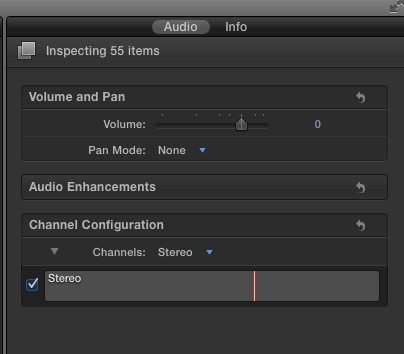
Notice that the default setting of Stereo. Change this to “Dual Mono.”

This will allow you to choose only the best-sounding mic (or to mix both mics) in later steps. But first, we need to create synchronized clips in FCPX.

Step 4: Create Synchronized Clips

Put the Event Library into list view (opt-cmd-2), and select the event title so that all clips in the event are displayed. At the bottom of the event browser, click the settings gear, and make sure you have selected these options:
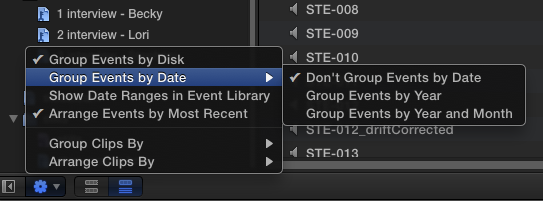
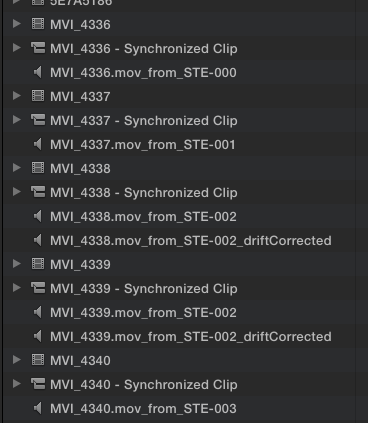
This will ensure that all your clips are displayed by name, next to each other, like so:
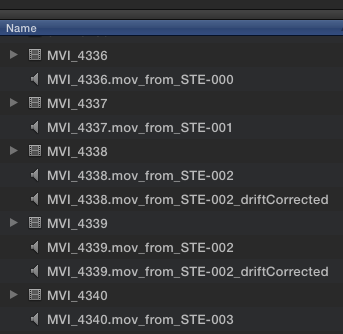
Select the first movie file, hold down the command key, and select the audio file immediately under it (select the “drift corrected” version if you have more than one).
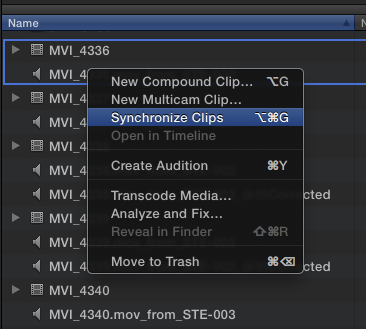
Repeat this for each file. When you’re done, your directory will be filled with synchronized clips, which are the ones you’ll be using for the rest of your edit.
At this point, I create a new Smart Collection called Sync Video, so I can keep track of all the new clips and have them all in once place for the next round of work, adding keywords.
Step 5: Organizing with Keywords.

In this example, my shoot included two interviews with different people. Later in the edit I’ll want to quickly find interviews with each person, so I’m going to assign keywords to each. To do this quickly using the files that have the good audio linked to them, I start by putting the Event Browser into Browse view (opt-cmd-1). Now I can see at a glance which clip has which person.

In the image above, you can see I’ve created a folder called “Interviews” into which I’ve created two keyword collections. To assign, I select all the clips with each person and drag them into their respective keyword.

If you’re lucky and your audio levels are perfect at this point, and you like the balance between the lav audio and the shotgun mic, you’re done. But because we live and work in the real world, it probably isn’t quite that neat. Your audio levels, like these, might be too low, and maybe there was an HVAC system running in the background that leaves a low level noise you want to remove. And in my case, the lav audio needs to be turned off altogether, because the shotgun sounds far better. The next step is where we do that, keeping basic adjustments where they belong – with the file in the event library, before editing starts.

Step 6: Fix audio problems.

In the Event Library, select the keyword collection with that contains the synchronized clips you want to work on. Select the first clip, and open it in the timeline.
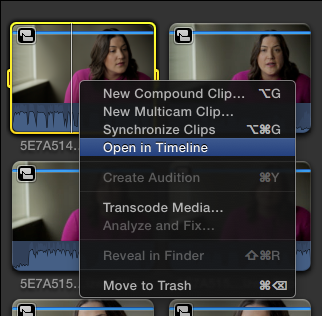
You’ll see the clip above the attached audio below, in green.

Select the blue clip, and make sure you can see the Inspector (cmd-6).

Since this clip contains only our reference audio, turn it off entirely by unchecking the box under Channel Config.
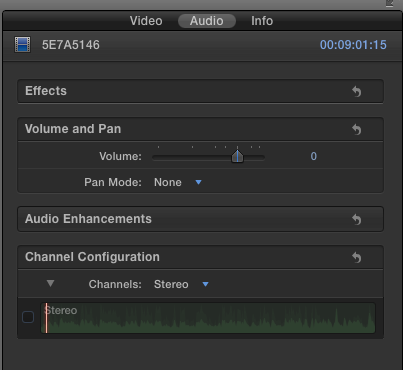
Now go back into the timeline, and click on the green audio file. In the Inspector’s channel config, both tracks are enabled.
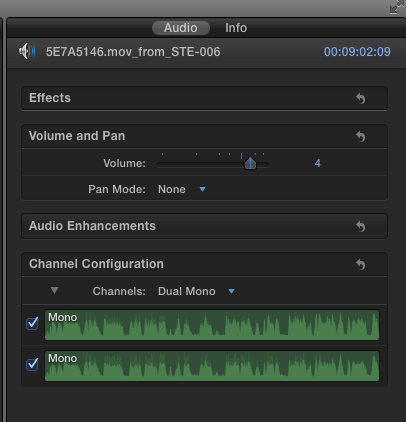
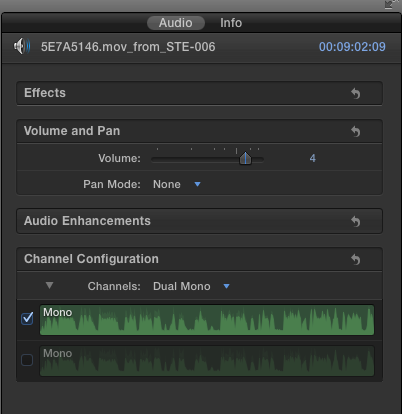
In my case, I want to turn off the lavalier track, which is on the right channel, because it is inferior quality to the shotgun mic.
Now that I’ve got the best audio quality, it’s time to check my levels. Here’s how the clip looks. I can see just by looking at the waveform that the volume is too low:
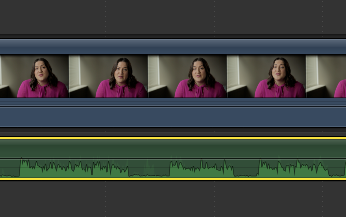
While playing our clip, the audio meters show the levels are bouncing between and -11 and -30 db. That’s too low. A good rough levels setting is between -6 and -20 db. Let’s fix that.

I could just yank up the volume, but that would leave us open to spikes of volume that might clip. I want to raise the levels without the danger of clipping, and leave any micro adjustments to levels to later editing. So I’ll use Final Cut’s Limiter effect, located in the Effects Browser, under Audio > Levels.
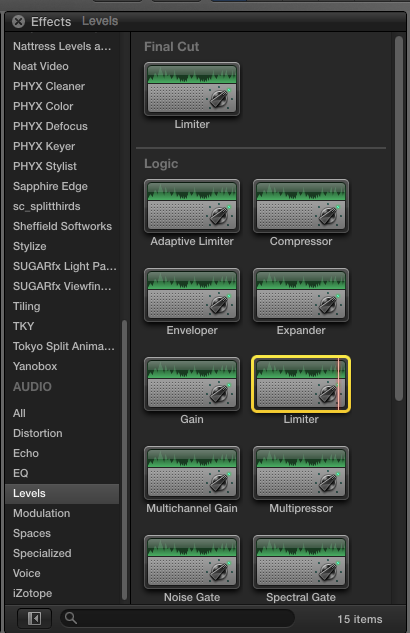
With the audio clip selected, double click the Limiter effect to apply it. It now appears in the Inspector.
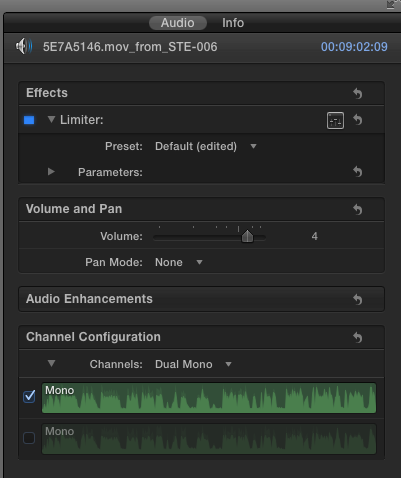
Click the slider icon to bring up the HUD controls for the Limiter.
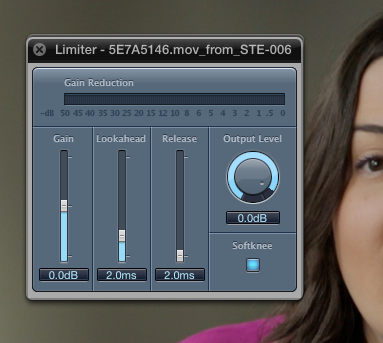
Here’s how I set mine:

Output Level: -3.5db. This means that the Limiter will “limit” the volume level to -3.5db, no matter how loud the clip gets. This is the correct setting if you don’t plan to use music under the piece. This is a pretty good baseline setting. If you know for sure that there will be music under the dialog, set it to -4.5.

Release: set to about 300ms for dialog.

Lookahead: leave it set to 2ms.

Gain: This will depend entirely on your clip. Drag the slider upwards until you are seeing levels that sound good, that range between -6 and -20 or so.

You will likely see some peaks reaching into the yellow in the timeline:

Listen to your clip one more time. In my case, I’m hearing an annoying HVAC system in the background that needs to be cleaned up. For that, I use iZotope RX, an insanely useful suite of audio repair plugins that work within FCPX. If you routinely work with dialog recorded on location, you won’t regret shelling out the $349 that it costs. It can also do miracles with clipped audio, which many audio engineers say is impossible to fix.

It’s beyond the scope of this tutorial to explain how to use iZotope, but in this case, I’ve applied the Denoiser effect, trained it to identify the noise with room tone I recorded at the location, then applied the setting to the clip to nix the HVAC. It doesn’t entirely remove the offending sound, but most of it is now gone.

At this point I’m done fixing things. It was a lot of work, and I don’t want to have to repeat it on every clip. So we’re going to select the audio clip, copy it (which also copies the effects which have been applied to it). Now, you’ll need to open each of the remaining clips, select the audio track, and choose Paste Effects.
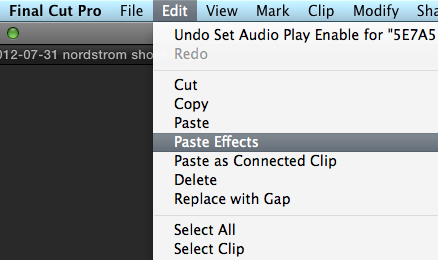
You can select all of the clips at once, and paste the effects to all of them. But if you have individual channels turned on or off, as I have, you will have to open each clip individually to adjust that.

Now you’re all set to start cutting with the confidence that your clips will sound great from the moment they land in your timeline.

If you had 6K to spend and didn't own any lenses, what would you buy?

A friend facebooked me this multiple-choice question this morning: If you had 6K to spend and didn’t own any lenses, what would you buy?

A) Canon 5d mk3 and used lenses from craigslist
B) Used Canon 5d mk2 and more lenses
C) 2 used canon 5d mk2 and less lenses
D) 1 canon 5d mk2 and 1 7D and lenses
E) Blackmagic Cinema Camera
F) Something else

I run everything at Visual Contact with a pair of Canon 60Ds, and quite a bit of used Nikon glass. In practice, I actually just use two things for probably 85 percent of my shooting: one Canon 60D and one Canon Zoom lens, the EF 18-55mm f/2.8. Having the second 60D body is great, and I do sometimes use it. But more often than not, it’s there just in case something breaks on my A camera. Which hasn’t ever happened. Yet.

So my snap answer, based on my experience and shooting style: I’d pick one camera and one sweet zoom that covers (in 35mm equivalent terms) the 24-70mm range (which is good for everything from establishing shots to interviews). I’d buy that lens new, because great used glass holds it resale so well, so you’re not saving much, and you’ll be able to sell it for most of what you paid for it.

Which camera to buy is a tougher question.

I’ve used the Canon 5dmkiii twice, and I really like it. In addition to being exquisitely sensitive to low light, it gives me the option to go really wide with my 20mm Nikor lens, the widest prime lens I own, which on my 60D equates to just a 32mm lens. But my favorite thing about the 5dmkiii is that Canon has fixed the moire issues that plague all first-generation DSLRs. Is it worth $3,500 just for that? Maybe.

Ever since their big announcement at NAB, I’ve been trying to figure out how to justify spending $3,000k on the Black Magic Design Cinema Camera. It’s not very much money for what you get, of course, but it’s a lot for me. I’m going to start out by renting it. It looks like an amazing camera. But with a 2.4 crop factor, finding wide glass for this camera could be a bitch. And after shooting on APS-C, I’ve got reservations about the Super 16 sensor size that I look forward to exploring when I get my hands on the camera. What’s most promising about this camera to me is the purported 13-stops of dynamic range. That’s very attractive to my style of shooting, which depends on doing a lot with minimally augmented lighting.

I quite like the APS-C sensor size of my 60Ds. It’s very close to Super 35 film size, and it gives all my glass extra reach, turning my 300mm Nikor into a far-seeing 480mm lens. And in the two and a half years that I’ve been shooting on my 60D, I’ve never once had a client complain about the image. When I compare the 5D image next to the 60D image, however, I do love the extra smoothness, color fidelity and shallow depth of field that I see. It also produces a slightly sharper image. The one Achilles heel of this camera is moire. I have to deal with it all the time and it drives me nuts.

I’m curious to see what Canon has up its sleeve with the next generation of the 60d, which some people are referring to as the 70d. Canon didn’t fix moire in the T4i, so it’s possible they won’t fix it in the new version of the 60D. If that’s the case, I won’t buy it and I’ll lean more heavily toward the BMDCC. There’s also rumors that Canon will make an entry-level full-frame camera soon, possibly in September. If they could bring the price of that down to something closer to 60D territory, and still fix the moire issues, I’ll probably buy one and use it a lot.

So there you have it. I’d spend about half of the money on a camera, and half on the best zoom lens you can afford in the 24-70mm range. And any money I had left over I’d spend on renting the specialty lenses you need only when you actually need to use them.

Overcast lighting tip: take it off the top with negative fill

A quick way to make the most out of overcast lighting is to place your subject against a darker background, add some bounce for the eyes and a bit of negative fill on one side. But why stop there? Let’s say you’re shooting an interview outdoors on a profoundly overcast day. And you don’t have any lighting to punch things up. Here’s something simple you can do to add some seriously directional quality to the light.

Let’s start with a baseline shot: overcast day, soft Seattle light raining down from above, guy with shockingly white hair (me!), shot against some foliage.

Fly a piece of 4×4 foam core up on a c-stand directly over subject’s head. Drop the flag down until you’re subtracting some light off the top of his head, and you’re seeing the light coming in primarily from the sides. You’ll have to open up a couple stops to maintain the correct exposure. Like so:

That guy’s hair isn’t so white. Really.

Now, add another a flag on the non-key side. You might need two of them (I did).

Check out the way things look now:

If this had been a real shoot, I’d have fiddled with it a bit more, bringing the flag closer to the camera-left side to block more light, and opening the camera-right side of his face to a bit more light. Also, I’d have opened the camera aperture from f/5.6 f/2.8, to throw the background more out of focus. Oh what the heck, as long as I’m talking about it, I might as well actually do it. Like so:

Regardless of how far you take it, the result is clear. Using this simple technique, light is pulled off the top, and wrapped around the side. On an overcast day, enough light will find its way past your flags to provide plenty of fill, but you’ll get this nice soft directional quality.

3 location scouting tips for shooting better interviews

For making films, my background in photojournalism turns out to be both a blessing and a curse. On the plus side, I know plenty about cameras, optics, and how to compose a shot. But photojournalism is a reactive game. A photojournalist’s instincts are to show what she sees rather than what she imagines. This is a huge skill: the ability to react almost instantly, to maneuver the camera into the best place to capture the defining moment as it happens.

But making films, I’ve discovered that approach rarely works. There are just too many variables coming up at once that you have to be on top of: sound, light, motion, schedule pressures, crew questions, etc. To find my footing in this related but very different terrain, I’ve had to learn to be proactive. Even for a basic filmmaking task like shooting an interview.

What I’ve discovered is that the simplest and best way to get better interviews is to scout every shooting location. Yeah, I know, probably not news to anyone who’s attended film school. Or like my partner Lisa Cooper, who knew this instinctively. But for me it’s a hard-won lesson. So…

Here’s what works for me:

1. Visit location at least a day in advance of a shoot.
2. Take stills at the location.
3. Review stills, and make a lighting plan.

What happens for me when I walk through a location without the immediate pressure of shooting is awesome. Curiosity becomes my guide. Without the pressure to start shooting in 20 minutes, I see things I wouldn’t otherwise see: a frosted glass window suggests possibilities as a background, for example. But what about that open doorway? Sound might be a problem here…so how about the conference room?

Here’s some shots I took on a recent walkthrough of an office space where we would be shooting two interviews:

As I visit the space, I take pictures. Lots of pictures. I explore every possible interview room from multiple angles. Even if I don’t think a room is going to work, I take pictures. And what often happens is that when I’m reviewing the shots later, the idea comes to me. Hits me right between the eyes, actually.

An iPhone is ok if you don’t have anything else, but I’ve found that shooting stills with my DSLR is much better. Sometimes background details will provide clues to how best to frame the interview. With the DSLR, I’m able to blow them up and see the detail.

In the case above, my walkthrough began with shots of the employees open office space, and ended up in a conference room that had some frosted glass panes. It was possible to close the blinds on all outside windows. Initially I thought I wanted to do something with window light, possibly with the subject framed in the open doorway so we could see some out-of-focus workers in the background.

Later, when I was reviewing the photos, it occurred to me that the better way to do it was to use the frosted glass as a background, because the topic of the piece was about transparency in business practices. Even though the glass is opaque, the idea of transparency (or lack thereof) is at least hinted at. Here’s what the final interview, which was shot in the conference room, looked like:

Having this plan allowed me to mentally prepare to shoot the second interview, so that it would also match visually. For scheduling reasons, this second interview had to be shot in a totally different location at the same business, a small interior room without any windows. Lucily, however, it had one frosted glass wall, which faced a hallway. To recreate the daylight filtering through glass, I simply placed a daylight-balanced LED light outside and aimed it into the glass. It ended up matching pretty well:

I don’t know if I would have been able to come up with this approach on the spot. But because I had time to plan, I had figured out how to do this in advance, which made for a much more relaxed shoot day.

Another office location that we visited recently presented similar challenges. We walked through a busy office space and found a quiet editing bay, which caught my eye because of the interesting circular patterns. I had Lisa sit in approximately the place where I imagined setting up a soft box to light the subject.

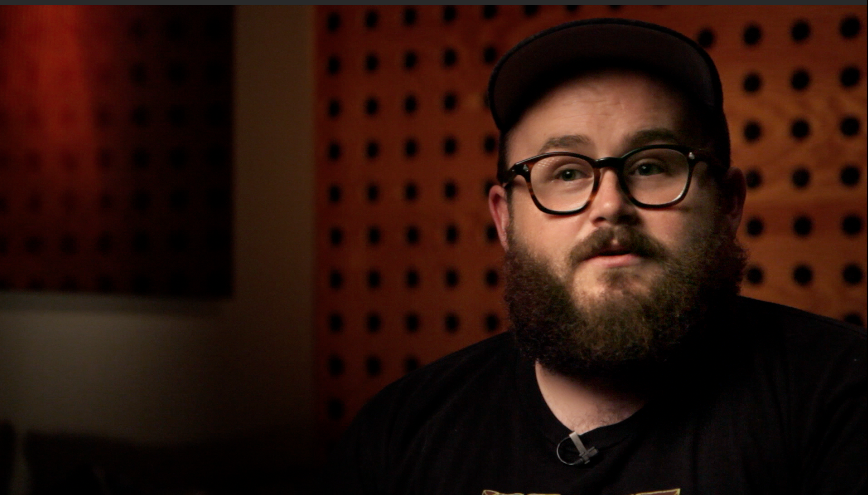
We ultimately shot two interviews in the space, changing them slightly to get each subject on opposite sides of the frame:

In my next post, I share how I use my two favorite iPad tools to make and share my lighting plans: Omnigraffle, and Lighting Designer.

Update: Here’s the post about using Omnigraffle as a tool for planning your lighting.

Shooting the Moon: combine two shots for one dramatic photo

Last night’s Super Moon brought the moon close enough to Earth for NASA to call it 14 percent larger and 30 percent brighter. That was enough to send dozens of people, including me, scrambling for a place to stand to observe the rare spectacle. I headed to Seattle’s Gas Works Park, thinking I’d shoot a timelapse of the action from atop Kite Hill.

But when I arrived, I discovered the hill was already packed with moon seekers. So I set up my tripod from a more humble vantage, halfway down the hill, next to a couple of other late arrivals. Sometimes it pays to be late! Just before the moon appeared, the guy next to me said “I’m sure the moon’s going to be great and all, but I think the better photograph is that way,” pointing behind us. I turned around and saw this:

A nice shot, for sure. But with a little room for improvement.

After the moon came up a few minutes later, I shot this frame with a 300mm Nikkor f/4. This is the uncropped version, just as it appeared through my camera’s viewfinder.

After the excitement of watching the moonrise was over, I went home, and imported my two shots into the Beta version of Photoshop CS6 that I recently downloaded from Adobe. My timelapse, incidentally, didn’t turn out at all. But I saw a lot of potential in these two frames. Here’s what I did to bring the magic together:

1. Rather than blow up the moon to appear larger in the frame, I started by down-sampling the people shot. It was destined for the web, so it didn’t need to be high resolution. I chose 1400 pixels wide. Using selective color, I made a selection of all the blue sky. The I pressed command-shift-i to select the inverse (the people), and commend-j to create a new layer with the selection. Here’s what it looked like:

2. Next I opened the moon, which was easy to get on it’s own layer similarly, by using selective color to drop out the dark sky, and after a little refine edge work, it looked like this:

3. I placed them together, on separate layers, with the moon behind, to get this:

4. I had saved a copy of the original shot of the hill on it’s own layer, all the way in the background. Turning it on makes things looks like this:

5. Something didn’t look quite real about this. With normal lenses, the evening sky typically appears darker toward the edges of the frame, and that was missing from my original shot of the skyline, because it was shot with a longish 105mm lens. To get that feeling back, I needed to add a gradient. This took a little playing around – I tried several kinds of gradients, and ultimately settled for a standard black, white gradient, at 58 percent opacity, using “multiply” as the layer blending mode (which darkens only). Here’s how it looked, along with the settings I used in the layer:

6. Turning all the layers on reveals the finished shot: a whole bunch of photographers gathered to shoot one super big moon. Enjoy!

V-mount battery powers CN-900 for more than an hour

Today I will sing the joys of using an untethered LED light.

On my recent trip to Alaska, I wasn’t sure I’d have power everywhere I went. So I rented a v-mount battery and packed it along. The CN-900 conveniently includes a v-mount plate. I’ve posted previously about using a more affordable Tekkeon battery with the CN-900, but I’ve found I can get only about 20 minutes of full-power lighting out of the Tekkeon. For this trip I needed more than that, hence, the v-mount.

How’d it do? Well, I used it three times during the trip to shoot interviews that lasted on average 45 minutes each. And I never had to recharge the battery once.

Granted, I only once used the light at full power (I was using it as fill on two of the three occasions), but it was an awesome thing to just grab the light, and stand, and the battery, and be shooting with powered light moments later, both indoors and out.

I was so impressed that, back home, I immediately placed an order for a Switronix v-mount battery kit (includes charger), which happened to have a $150 rebate, bringing the total purchase to $279.95. (Switronix and B&H appear to be running the rebate semi-permanently; today it’s listed as running through June 30; when I placed my order it was April 30).

Frankly I think these batteries are overpriced, like so many of the products built for the film and TV industry. But having experienced the freedom of using one, I will say it’s worth the price if you can afford it. You can also use these batteries to power other devices, such as my Canon 60D during an all-night timelapse. That is, with this adapter which, incidentally, will set you back another $150. It feels like getting robbed to pay $150 bucks for a simple adapter. If you know of a more affordable alternative, please let me know.

Since I’ve taken delivery of my new battery, I’ve run some tests. And I’ve discovered that it will power the CN-900 for 65 minutes at full power, without any drop in brightness. After that, it’ll keep going for about half an hour, but the brightness begins to fall off, imperceptibly at first, then dramatically.

Together, the whole thing (light and battery) weighs 7.8 pounds. There are smaller and lighter v-mount batteries than the Switronix. But the Switronix was the most affordable I could find.

Now, if I could just find a padded pack that is at least 16.5 inches per side, I’d have a great way to carry the light, the battery, and a light stand. So the hunt is on. I’ll let you know what I find.

UPDATE: I’ve found three possible solutions on the market for packing these panels. All are specifically designed for 1×1 LitePanels, which are slightly smaller than the CN-900s (which measure 16.5 x 15.5 with yoke attached). Note, I haven’t listed any of the PortaBrace products for LitePanels, because all of them are sized too small to fit the CN-900. But any of the following three should be good:

Petrol Liteporter – $157.95
CamRade LP-Bag litepanel bag – $219
CamRade LP-Backpack for litepanels – $284.50

How to color match a pair of CN-900 led lights

I’m a fan of the inexpensive CN-900 led lights. Not because they are the greatest thing on the market – but because they are damned good, at a price I can afford ($450 vs. $1,800 or so for LitePanels that incidentally aren’t as powerful). I liked the first one I got so much that I got another one. But when I unpacked it and set it up next to the first one, it was immediately clear that the low price didn’t include matching the lights to each other: the two lights were visibly different in color temperature.

Rather than allow this to be a show stopper, I decided to test the lights using the excellent vector scopes built into Final Cut Pro X, and add color correction gels to bring them into balance with each other. With a little work and a few gels, I was able to match them. Here’s how.
1. Get a grey card (although a white piece of paper will work fine, as long as it’s pure white (be careful of expensive writing paper which could be warmer than pure white, but you could use cheap writing paper in a pinch if you need to save money).

2. In a darkened room (or after dark) that has neutral colored paint on the walls (white walls or grey walls are ideal), set up your first light on a stand. Make sure it has the included magenta filter in place, which is necessary to match daylight. Set up a second stand that has grey card clamped to it (or just tape it to the wall), and light the grey card roughly evenly at a 45 degree angle.

3. Set up your camera on a tripod in front of the grey card. Fill the frame with the grey card (it doesn’t matter if it’s in focus; just fill the frame). Make sure house lights are all off, so that only light hitting card is from your LED panel.

4. Custom set your camera’s white balance to 5400K, which is what these CN lights are supposed to be.

4. Roll 30 seconds of video or take a still with your camera (either is fine; I prefer still photo because I shoot with DSLR and that way I don’t have to loop footage in next step, but either is fine).

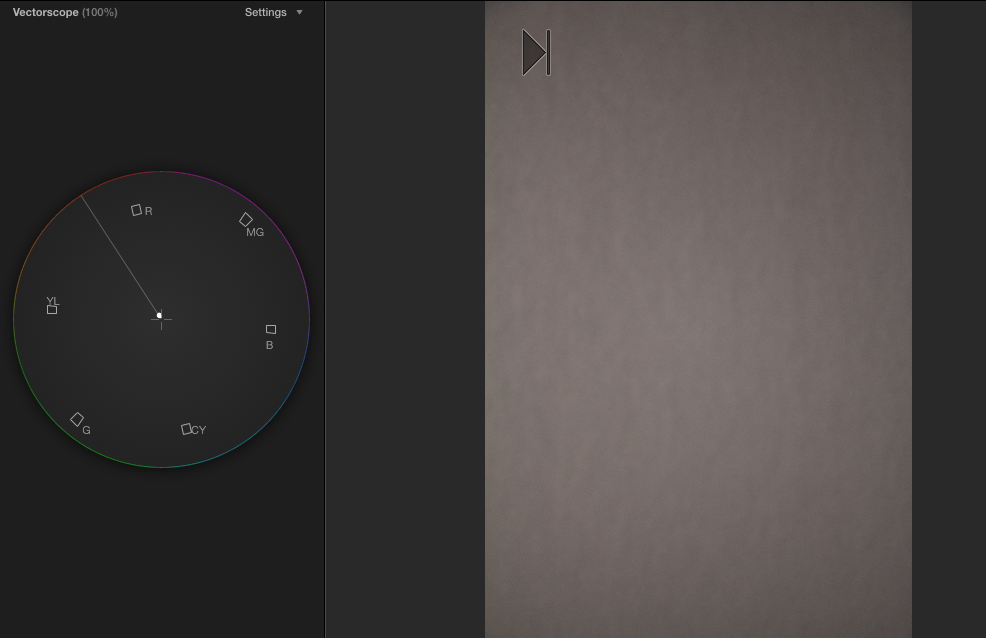
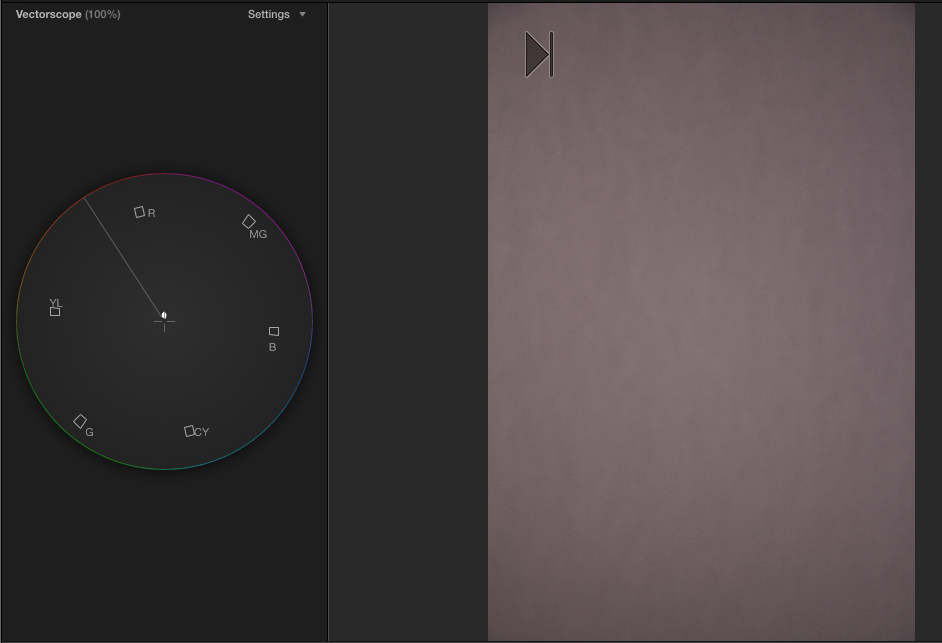
5. Import the still or video into your editing suite (I use Final Cut Pro X). Open the clip. Turn on your video scope. Your scope should show something like this:

Basically, you want to see a dot that is right in the middle, which means that your light is balanced correctly at 5400K, with no color cast to the image.

If you see this, then you are good to go with this light, and now you can perform this same test on your second light.

However, chances are good that your first light, and your second, won’t hit the circle perfectly. Here’s what I see on my A light:

My A light has too much red in it.

To get the red out, I needed to pull the light in the opposite direction of red. On the scope, that shows as Cyan. So if you had access to cyan filters, you could add a small amount of cyan, say 1/8th or 1/4, then test to see which brings you closest to the target.

In my case, I didn’t have access to cyan filters at my local camera shop, which has the much more common colors: CTO (redish yellow), CTB (blue), and plus green. Here’s how the scope reads after I’ve added 1/4th plus green:

It’s brought us closer to our crosshairs, but in doing so, it’s pulled us toward green. I need to go a teeny bit further, and get rid of the green. To do that, I added 1/4 blue:

Now we’ve gone too far to the blue. So let’s try a 1/8th blue (which, incidentally, is the smallest increment in which you can buy gel filters):

Bingo. This is as good as it gets. So to balance my A light to 5400K, I’ve permanently added 1/4 plus green and 1/8th plus blue gels by taping them to the magenta gel that ships with the CN units.

My B light looked a little different when I tested it:

So I only had to make one correction to it: I simply added 1/8th plus blue, and it’s all set, and now both lights match each other.

Hope that helps. The CN-900s are outstanding lights that will save you a ton of money if you’re willing to invest a bit of effort into matching them.

Traveling with a pair of CN-900 Led lights


I just returned from a week of shooting in a remote part of Alaska, a trip that I unfortunately can’t talk about because of a client non-disclosure agreement. But what I CAN talk about is a few lessons I learned about equipment: what gear to take, what NOT to take, and how to pack it.

First up: I want to talk about CN-900 LED lights, after I found this note waiting this morning from one of my blog readers, Jason:

“Dan, What kind of a case do you use to pack these up? The soft cases leave a lot to be desired.”

I packed both of my CN-900 lights on this trip, and ended up using only one of them. Lesson: One LED panel goes a long way when you’re on the road, working in stressful conditions where you have to set up quickly. I was relying on these lights to fill and augment the already existing light, so one light turned out to be enough. But I was glad I had the second one, just in case.

I have a Pelican 1550 case, and discovered that by removing the padded dividers and adding some 1″ foam that I picked up at Fred Meyer, I was able to fit both lights and their cords. But this required unscrewing the yokes and packing them separately, as they were too big to fit. This was a minor inconvenience, because it takes a minute to screw the yokes back on before the lights are ready for use. But what happens if you misplace the yokes? Luckily, that didn’t happen. But I’d really prefer to have all of the lights in one case, ready to go as soon as they are pulled out. And, I had to leave the assembled light out of the case when I was using it, because it was too big to fit back into the case once assembled. But this was offset by the fact that the 1550 is a nice small case.

One of the best things I did before the trip was to rent a powerful V-mount battery to power one of the lights. It made using the light massively easier than having to carry an extension cord and hunt for plug in ever time I needed to set up. Being untethered was the difference between using and not using the light on more than one occasion.

I have a rule: ALWAYS use a sand bag when placing a light on a stand. But because I was traveling, I decided paying an airline to ship sand didn’t make any sense, and that I would just be extra careful. Guess what? I backed into the light while moving around my subject filming. And the light, which was extra top-heavy because of the heavy battery, went crashing to the floor. Amazingly, it continued working. But it left a big dent in the light’s metal housing (see photo).

One thing about this incident: it speaks highly of the construction build of the CN-900. I once dropped a LitePanel Micro Pro about 2 feet onto a hardwood floor, and it died instantly. I had to send it back to LitePanels for repair, which they didn’t charge me for, but nevertheless, I was without the light for about 10 days. The CN-900 took a severe beating and kept working.

Dramatic interview lighting

Seattle Interactive Conference today launched the first in a series of short films that Visual Contact, my company, is making for them. We’re delighted to be working with SIC on this project, which over the next six months will spotlight some of the entrepreneurial minds involved with the conference.

I’d like to share a behind-the-scenes look at how we shot part of this first piece, a profile of Neumos co-owner Jason Lajeunesse, who is a panelist at this year’s event and host of the after party.

I gotta say this is the most beautifully shot piece we’ve made to date. Check it out:

OK, so a few observations I’d like to share about making this piece. In particular, the interview setup. As is common, we had about 10 minutes to identify a spot to conduct the interview that was not only quiet, but looked fantastic. The main dance floor at Numos was the only quiet place during mid-day, as the bar next door was blasting music and pouring day drinks. Lisa just walked out into the middle of the floor next to a divider curtain and said “right here.” I protested for a minute, attracted to the only window along the north wall, where some beautiful natural light was falling. But that’s why we pack lights. Framing the shot with him behind the curtain in front of the stage was a perfect way to spotlight the owner of one of Seattle’s landmark night clubs (a place I’ve spent more than my fair share of evenings). I explain how we lit it in a minute.

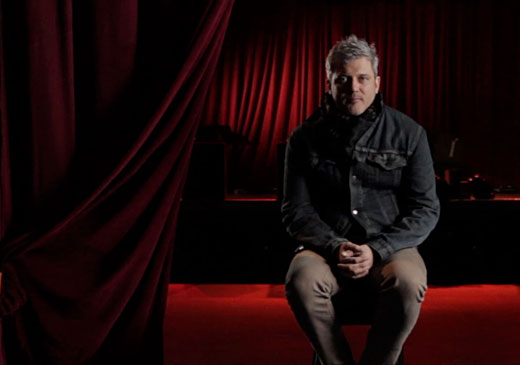
But first, some frame grabs:

So, here’s how we approached lighting Jason for his interview shot.

It was nice to have a lot of space in this scene, because it meant I didn’t have to flag off the lights. The light spill was absorbed by the large dark space. I used three lights in addition to available light:

Ambient light:
There were some tungsten house lights aimed toward camera spilling onto the floor, which provided the splash of red. Also there was one big vertical north-facing window that was letting in daylight but not nearly enough for a proper exposure. I simply augmented this light to make it my key.

I set the white balance on my Canon 60D to 5400K daylight, which made the tungsten light spill in the background a super-saturated red.

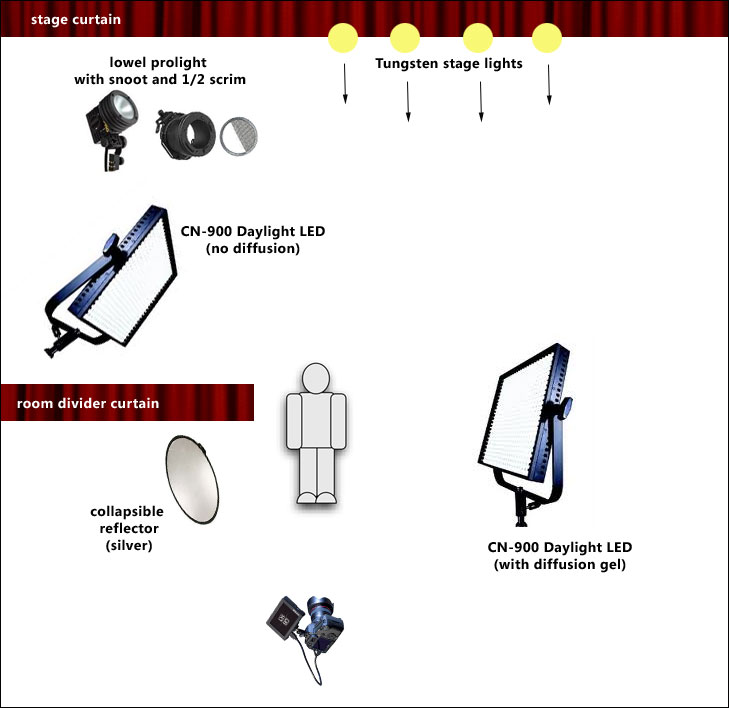
Background light: Lowel ProLight with snoot and 1/2 scrim (this blocks a stop of light from half of the light, so that the light projected across the curtain is more even). I use a cheap 300-watt dimmer that you can get at Home Depot with the ProLight, which draws just 250 watts. It’s a small light, but I find it incredibly versatile and I use it all the time as an edge light or hair light.

Key light: CN-900 LED at full power. I clipped a 24″ piece of full-stop diffusion onto the barn doors, which goes a long way to softening this light.

Rim light: CN-900 LED dimmed down quite a bit without diffusion.

Here’s the shot again, with a floor plan for how it was lit:

AUDIO

This is the second video we’ve recorded primarily with the amazing new Sennheiser MKH-8060. As backup, we also recorded lav audio with a Tram TR-50, which is a great lav, totally professional and used by lots of major productions. But wow, comparing the audio between these two mics was flat-out stunning. Who knew that a Tram could sound like such crap? The 8060 just blows it away entirely. Granted, it’s not a fair comparison to match a lav with a top-of-the-line shotgun mic. But my previous go-to shotgun mic, the AT875, was about on par with the tram, so I was gobsmacked at how sweet this mic sounds. It’s also incredibly forgiving to use – if you’re accidentally off-axis a bit, it’s a simple fix: just boost the levels, without need to tweak the EQ, because off-axis sound isn’t colored the way most every other mic is.

The MKH-860 is an incredibly rich sounding mic, and after using it a couple of times, there’s no doubt in my mind that it was worth every penny of the $1,200k it cost to acquire the beast. Audio is a massive part of every video we shoot, so it just makes sense to have an epic mic even more than an epic camera (or a c300, or even a 5dmkiii for that matter. We shot this film with a pair of Canon 60ds).

Lisa and I will be delivering a new video in this series every month between now and this year’s conference on October 30th, and we’ve got some incredibly talented and fascinating personalities in the pipeline.