Category Archives: Tips

How to make a DIY Kino Flo for $60

Yes, you CAN make a perfectly functional kino-style light with parts you pick up at Home Depot. One that’s flicker-free, looks good, and attaches flexibly and solidly to standard grip heads. It weighs just 4.2 pounds. And you can control the light spill. You won’t get the tough shell and transportability of the Kinos, but if, like me, you’re using the light for a specific job and won’t be using it every day, this is an affordable way to go with little compromise on the quality of the light.

I arrived at this parts list the hard way: by buying the wrong stuff first, learning what works and what doesn’t and why. Here’s what I’ve learned:

T12 tubes are a bad choice. They have what’s called “eratz flicker” unless you buy more expensive ballast. Plus, t12 bulbs are less efficient than the T8 and smaller tubes, so you get less light out of them, even at lower wattages. Instead, get inexpensive T8 fixtures at Home Depot, but not TOO inexpensive. I paid $25 for mine, and it’s great. Just make sure it has electronic high frequency ballast (50/60hz).

None of the tubes on sale at my local Home Depot had a high enough CRI for my purposes, so I called up a local Seattle lighting supplier, Pacific Lighting and Supply, and they hooked me up with to Phillips TL950 full-spectrum lights, which have a whopping 98 CRI, and are balanced at 5000K (a little on the warm side of the ideal 5600K, but close enough for me). The alternative was to purchase lights online but all I could find had minimum order of 4 bulbs, and expensive shipping. So buying local saved me money.

Primary parts:
Lithonia Lighting t8 two-strip fixture: $24.97
Two Phillips TL950 t8 fluorescent tubes: $26.81
Matthews drop ceiling scissor clamp: $8.95

Other stuff you’ll need:
Black wrap (available at filmtools for $23)
3″ gaffer tape (also available at filmtools for $31)
12′ electrical cord with plug (I cut mine off an old Ikea lamp)
2 heavy duty zip ties

To make the mount, I used a Matthews drop ceiling scissor clamp, which I zip-tied around the light using large zip-ties. This works fine in my case because the lamp fixture is extremely lightweight. If I had bought a wider shop light instead, for example, I would have used a stronger and wider Matthews baby plate for the mount. Make sure to get one with a long spud, preferably 6″. To hold everything in place, I gaff taped over that to hold the zip ties from slipping. In fact, I ran gaff tape over the entire light surface – it cuts down on reflections and black looks more professional, of course. The mount works with any c-stand’s gobo head, using a 5/8″ spud.

The fluorescent fixture I bought at Home Depot came ready to be wired, but without a plug. So I cut the cord off an old Ikea light, and wired it up (black to black, white to white – ignore the green if like me you’re wiring to a two-prong plug for maximum socket compatibility on location) using the twist connectors included with the light.

The inexpensive light fixture I purchased had no reflector. That turns out to be a good thing, because I prefer the foldable and shapeable one that I built myself. To do that, I took a 12″ wide strip of black wrap foil, and cut it to match the length of the light, 48.” I gaff taped the edges, which are kind of sharp, which stiffens it some, and gives it more durability. Then I gaff taped the wrap to the top of the light on both sides. Done.

Note, I at first thought I’d use Kino tubes in this light, but discovered that most Kino tubes are designed to be high-output, which means they require more powerful ballast to drive them with the proper color temperature. So buy the cheaper full-spectrum bulbs instead. The best brand for daylight, according to Shane Hurlbut, is Vita-lights.

Note on transport: This light fits perfectly into an inexpensive plastic golf bag case like this one, which I own. It has wheels and is a great way to carry c-stands, glide tracks, tripods and this light safely to location.

How to take a great headshot (without any other lighting) in overcast light

It’s grey in Seattle most of the time. I actually like it that way: it’s the world’s softest light, at your fingertips, and you don’t have to set up a single soft box. But it has its drawbacks when it comes to lighting head shots. With a head shot, I want light that is soft BUT has some modeling and one side darker than the other, to bring out the shape of a face. How to achieve that without adding any lights? You need just two things: a piece of black foam core, and piece of white foam core (or as I used in this case, a collapsible reflective fabric disc).

For this photo, I had the subject, my friend Vanya, balance the black foam core on his right shoulder, which shielded the right side of his face from the grey sky, making it slightly darker than the other side (the technical term for this is “adding negative fill” which is a fancy way of saying you are blocking light from reaching this side of his face. I used a 32″x40″ foam core that sells at University Bookstore for about $6). You have to get it pretty close to the subject’s face for this trick to work – like about 16″ away.

This alone would do the trick for many people, but Vanya’s got deep set Montenegro eyes that will pierce your soul (and go dark without fill). So that’s where the bounce comes into play. I simply had him hold it in his arm, so that it angled light up at him from below. This has the same effect that happens with “butterfly” lighting, which is to hide lines in faces and generally make the person look awesome. They say this works best for women, but I disagree: when is the last time you heard a middle aged man say “hey, can you light me so that the lines in my face look more prominent?” Using fill from below camera that is close to the subjects face is guaranteed to flatter.

In this case, it sent a little too much light up under his chin, so I had to darken that in Photoshop to bring the attention immediately to where it belongs: his face. I also slightly darkened his forehead, and a tiny bit on his sweater, and that’s it. A simple shot with available light, that looks fantastic.

Camera: Canon 60D
Lens: Canon EF 17-55mm f2.8 zoom (set at 55mm and f2.8).
Background: wooden fence in my back yard

More Final Cut Pro X editing tricks

Been doing nothing but edit the past few weeks and I’ve picked up a few tricks I’d like to share.

Matching Framing: If you’ve got your skimmer over a clip in the timeline and want to see the original clip in the browser, you can call it up by pressing Shift-f. This one is useful if want to see quickly whether there was more to the clip (saves you having to drag out the handles in the timeline to see whether anything is there). Or if you simply want to find the same clip because you know there’s something after the edit point that you want to use.

Sample-accurate sound editing: FCPX doesn’t allow you to split clips (audio or video) in increments smaller than a frame. This is fine for video, but sucks for fine audio editing, which contains many samples per frame. But there’s an easy workaround. Instead of cutting the clip, you can keyframe the audio level to -96db to remove it. Insert four keyframes in the audio level, then drag down on the middle to reduce the audio level and remove the offending audio.

Better Sound editing: Turn off video display in timeline and increase the size of the waveform. Makes your job way easier. You can do this quickly by pressing the light switch in the lower right of the timeline, and calling up the options available to you there.

Quick audio levels change: With video or audio clip selected, press Ctrl and the minus or plus key. This will drop or raise audio level by 1db.

Replace with gap: I find I often want to delete a section of video or audio, but leave a gap rather than have it close up. So instead of pressing “delete” use Shift-delete. That deletes and replaces selected range with a gap clip.

Lift edit: When editing dialog and b-roll, you sometimes find you want to put a clip that was in the main timeline onto a connected timeline, and replace it with a gap to preserve the length of the edit. Select the clip in the primary timeline, and press Opt-Cmd up arrow.

Select clip: When skimming over a clip in the timeline, pressing C will select the clip.

Time ramping in Final Cut Pro X: so easy I can do it

Time ramping. It’s been on my to-do list of “things to learn how to do in Final Cut” but never had time to face the fat tutorial. So this afternoon I thought I’d give it a shot in Final Cut Pro X, sans tutorial. It turns out to be ridiculously simple. Just click the magic wand icon (not kidding), select whether you want it to ramp up from 0 or down to 0, click, and you’re done.

This clip is all cut from time lapse footage that was shot slower than it should have been, so that it played back pretty jerky at 24p. I started out by slowing it to 50 percent using the incredible Optical Flow mode, which takes awhile to process, but the results are stunning, almost liquid. Then I sliced up the image and did some zooming on it to get the different close up views. Then I ramped the first clip from zero, and the last one to zero.

The difference between the old version of Final Cut and this new one is the difference between knowing you CAN do something, and actually doing it.

Final Cut Pro X: another favorite keyboard shortcut for browsing events

OK today I picked up another keyboard shortcut that I’m excited about.

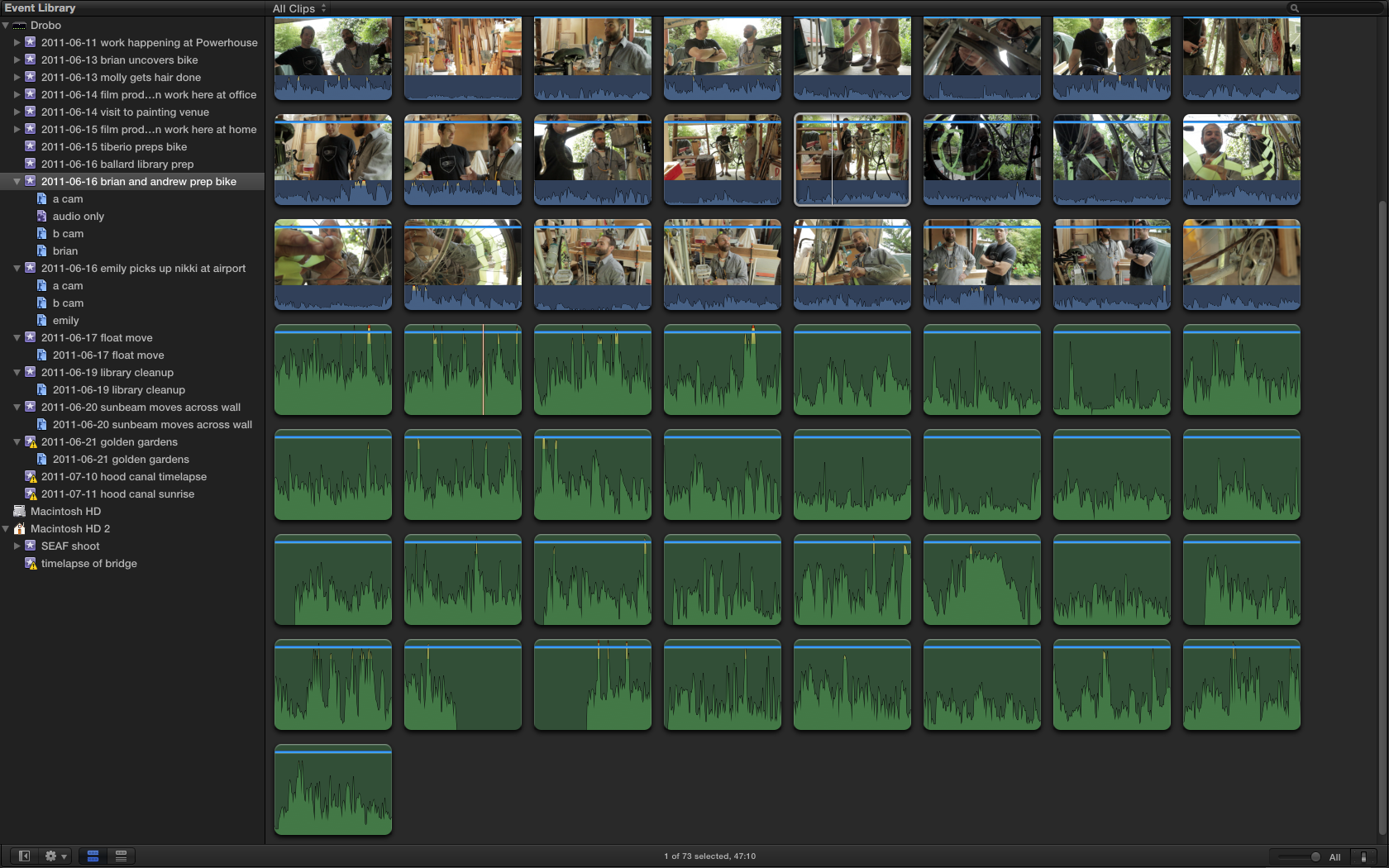
When reviewing an event in filmstrip view, the default is to show 5-second increments. This is fine if you’re making a selection on a specific clip, but what if you just want to see thumbnails of ALL the clips? I find myself switching the view back and forth a lot. The official FCPX keyboard shortcut to do this requires holding down the left side of your keyboard all at once: cmd-opt-shift-,. And it only works if your focus is on the event browser (rather than on the event index). Which means if you’re in the timeline, you have to cmd-shift-1 to toggle the event browser index off before the aforementioned shortcut will work.

Luckily, and this is what I’m excited about, there’s a far easier way to do this. When you’re in the even library, just press shift-z! Yup, the long-standing Final Cut shortcut for “view all” does what you’d expect on the event library, showing you thumbnails for all clips in a single keystroke. Love it.

The default view:

The shift-z view:

Final Cut Pro X's elegant solution for synchronized clips with multiple tracks of audio

On my current film, Beyond Naked, most of the audio we recorded was fairly straightforward, dual-mono, 2-channel recording: lav audio was recorded on the left channel, and shotgun mic on boom went on the right channel. Reference audio was recorded with on-camera mic, which we use to sync the clips in DualEyes. Then, we create Synchronized clips in FCPX by connecting the video with the audio, and we’re ready to roll.

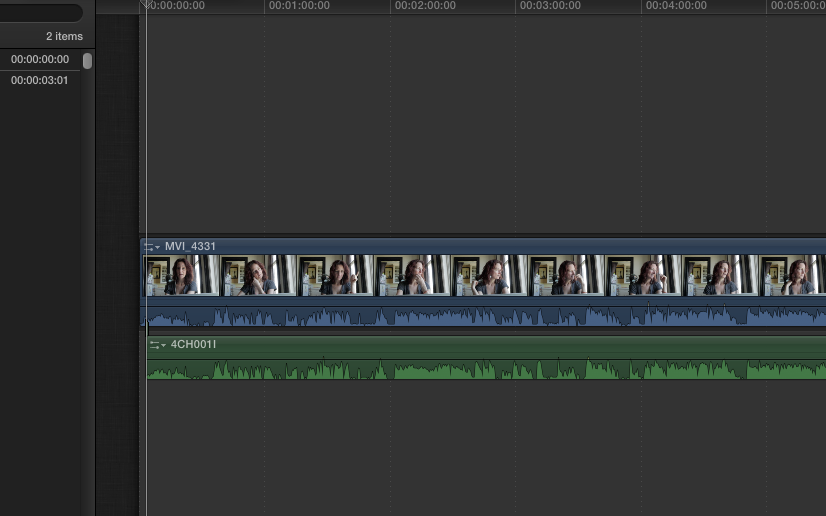
But occasionally we faced a more complicated situation: phone conversations. During production we recorded these situations on a Zoom H4N in 4-track mode, which produces individual files for each side of the conversation. So in post, instead of one audio and one video file, we have to sync three files: 1 video to 2 audio clips. And of course, the audio won’t sync to the audio clip of the person on the other end of the line, because only her side of the conversation is in that file, leaving nothing to sync to.

I spent a few hours today figuring out how to do this in FCPX, and discovered that the clever engineers at Apple have built an extremely elegant method for doing this and storing it in the clip rather than in the project. How cool is that? Here’s how it works.

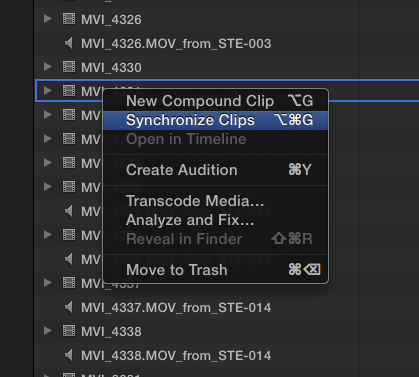
1. Select the video clip and the audio track that has the cleanly recorded version of the reference track. Right-click and select “Synchronize clips” or press cmd-opt-g.

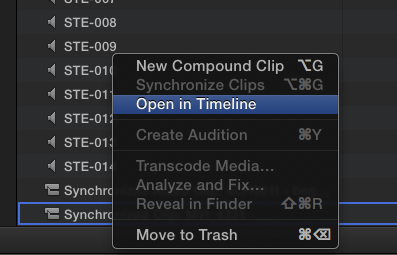
2. Right-click on the new synchronized clip, and select “Open in Timeline.”

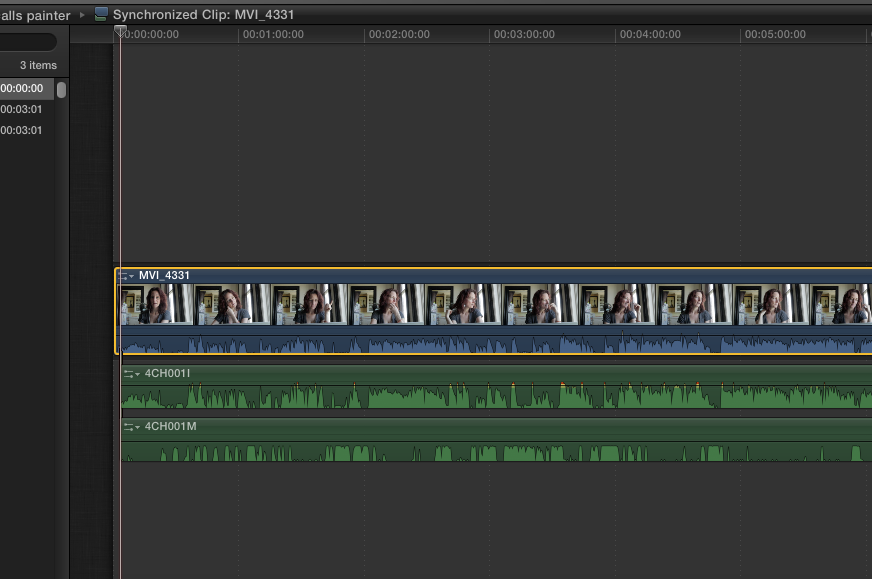
3. With the clip open in the timeline, select the third audio file. Align the playhead to the start of the first audio file. Press Q.

4. The audio clip is immediately connected below the second audio clip, and is in perfect sync, because the two clips are of precisely the same length.

4. Close the clip in the timeline by pressing the back arrow located in the upper left of the timeline. The additional audio clip is now stored with your synchronized clip.

What’s so incredibly sweet about this technique is that the you’ve just created a compound sync’d clip, all before you’ve even created a single project file. Everything happens in the event library on the CLIP! Test this out by selecting the clip and spotting it to the timeline by pressing e. it comes with all the sweet audio goodness, ready to roll and for further refinement such as mixing one channel louder than the other. In the prior version, stuff like this happened in the sequences, so you had to create a temporary or placeholder sequence just to prepare your clips for editing. I hated the confusion that caused me. With this, it’s all clean and simple, and stays where it belongs: clips are clips, and the timeline is the place where you edit those clips.

Proxies and Patience: prepping for the edit in Final Cut Pro X

Although Final Cut Pro X allows you to begin editing immediately while you ingest footage (an incredible feature), I’ve discovered that this really only works if you’re importing one event at a time. I’ve got 3 Tb of footage, all of which I’ve chosen to generate proxy files for to edit on (because my Drobo Pro isn’t fast enough to keep up with editing hi-rez files). I had hoped it would be possible to create multiple events and queue them up to import overnight, but no such luck. Every time we try this (on three different machines) FCPX will eventually freeze and/or crash. And the app forgets whatever it was transcoding when it crashes, requiring you to manually hunt down which files finished and which didn’t.

What this means in practice is that we have had to babysit importing our events, one or two at a time. Even with our four-core macs, creating proxy files for 3TB of video takes a long time. We’re still not finished, but the end is in sight. I’m looking forward to a more stable version of FCPX that will allow batch importing. But the current plodding pace is already a vast improvement over Final Cut Pro 7, which simply placed files into bins on import. This version creates thumbnails that are instantaneously skimmable, allow you me to see at a glance what I’m looking at. Also, when this organization process is complete, virtually all of the dual system audio will be connected, so that we’ll be editing with the good audio already in place AT THE CLIP LEVEL (not scattered in the blizzard of sequences that PluralEyes used to create on the old version).

Working with proxies is incredibly powerful in FCPX. You can sync audio to them, you can cut with them, you can even do basic color corrections on them, and everything will get applied to the original media when you’re ready for output. They speed things up tremendously if you’re connecting to your primary storage with Firewire 800, as I am. And, they look good. They are Apple Pro Res files, at 1/4 resolution of the original. So as long as you’re not playing them full screen, you can hardly tell the difference in the Viewer.

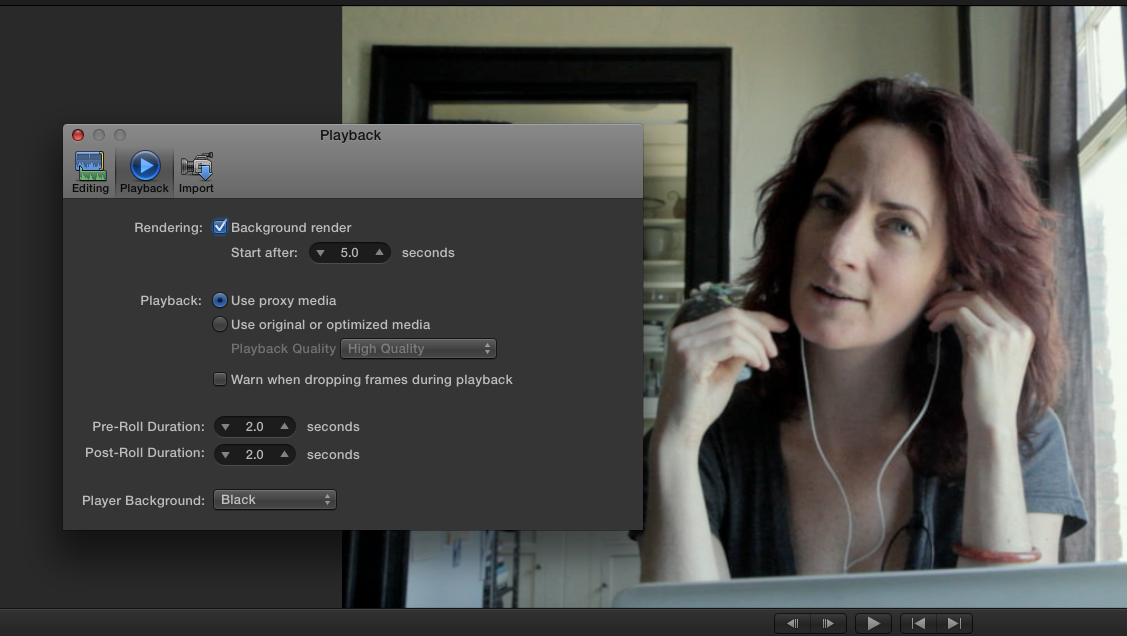
I was never able to figure out how to use proxy media on Final Cut 7, but with FCPX, using proxy media is dead simple (once you’ve waited for all the transcoding to finish): turn it on with a single click, located under the Preferences > Playback tab: “use proxy media.”

Tip: FCPX keyboard shortcut helps prep footage faster

I’m methodically prepping to edit (with the help of two very patient assistants) more than 3TB of footage and audio that will become Beyond Naked over the next five and a half months. I have several very specific tasks that I am doing to the footage as I bring it in: I’m changing the audio to dual-mono prior to linking it with video clips, I’m making several keyword assignments, and building a smart collection based on file type. All of which requires frequent switching between these views of the event library:

Browse View:

List View:

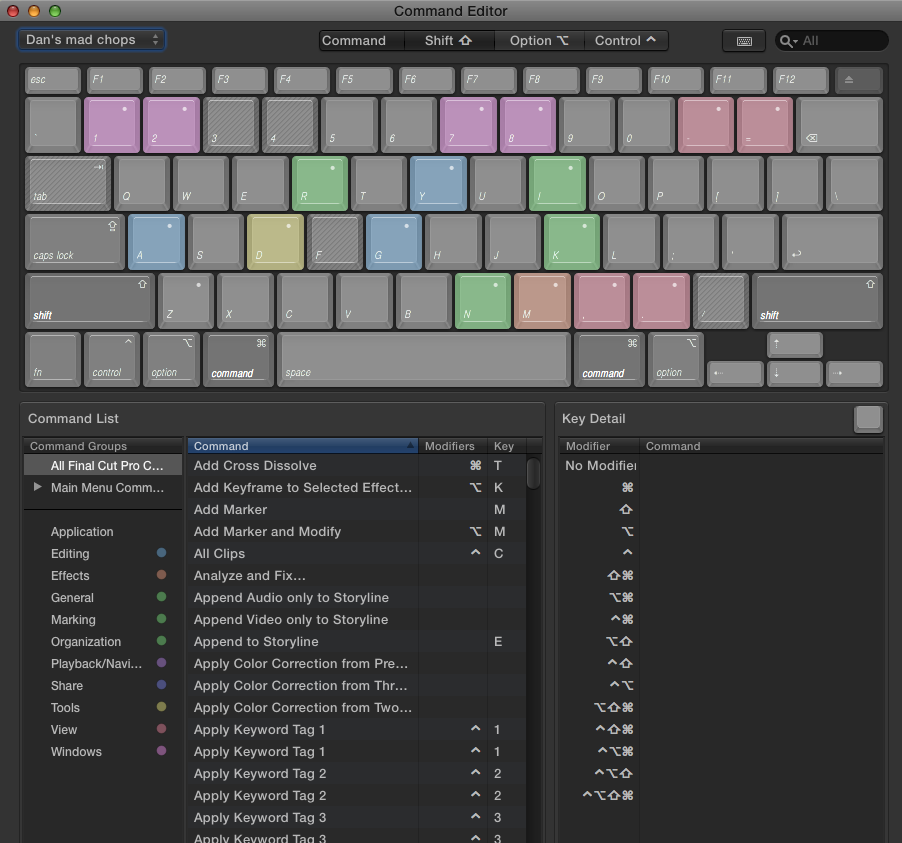
This evening I’m on the verge of dancing alone (with my cat Willow) in my editing suite, because I just discovered a keyboard shortcut that RULES: Cmd-opt-1 shows you the Event Library in browse view, and Cmd-opt-2 gives it to you in list view. Carpal tunnel syndrome, you may still get me some day, but not today. Thank you very much, whoever you are on the Apple development team. And, incidentally, I discovered this magical stroke by digging through the Command Editor in Final Cut Pro X, accessed by pressing Cmd-opt-k.

Final Cut Pro X Command Editor:

Last tip: the first time you open the Command Editor, make sure you save a copy right away, so you can begin assigning your own shortcuts for things like nudging the color-correction puck up and down and left and right one pixel at a time: by default many such commands have no shortcut key assignments, but you can find the action, and instantly assign any combination you like by pressing modifier keys, using the Command Editor.